
Introduction
As a developer, having a platform to host the code you write is very important. Expect to write a lot of code locally in addition to pushing your code to a remote repository on services such as GitLab or GitHub. SSH keys allows us to connect our computer to GitHub and easily push or pull any changes in our repository. However, there is a process to establishing that relationship between your computer and your remote repositories on GitHub or GitLab, and it can be tricky to set up.
There are many guides out there that overwhelm the reader with various SSH protocols and jargon that might intimidate or confuse newer developers. This guide aims to assist newer developers with establishing an SSH connection with their local machine and their remote repositories, all while keeping explanations and instructions simple and straightforward.
Generate the SSH Key
Like I said earlier, the SSH key is important for establishing the connection between your computer and GitHub (or whichever repository service you use). Here are the steps to generating the key:
ssh-keygen, and the key will begin to generate.After running ssh-keygen, your terminal should look like this:
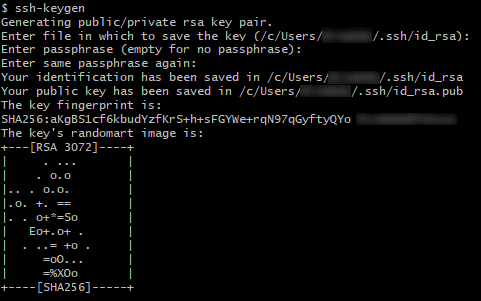
SSH Keygen Output
Believe it or not, that's pretty much all there is to generating the key! Albeit we used the quickest method to do it. We actually just generated two keys, but really we only need the public key.
id_rsa, is the private key, this key exists only on our machine and should NOT be shared with anyone (hence why it's private).id_rsa.pub, is the public key. This is the one we need to share with whatever service we're using to complete the connection.Grabbing the Public Key
The public key we just generated needs to be shared with whatever service we're using in order for the connection to be completely established. In order to copy the key to our clipboard, we need to navigate to the .ssh/ directory, which is located in our home directory.
cd ~/.ssh/ and hit enter. This folder contains all things SSH, including our private and public keys.cat id_rsa.pub and hit enter. Your public key will be displayed. CTRL+C.All that's left to do is add our key to any repository hosting service of our choice. The following steps will entail how to add your key to GitHub and GitLab.
Add the SSH Key to GitHub
https://github.com/settings/ssh/new.Authentication Key for key type, and paste the public SSH key we copied into the box labeled Key.
Adding Key to GitHub
Click Add SSH Key when you're finished.
Add the SSH Key to GitLab
Edit Profile.SSH Keys located on the left sidebar.Key, and add a title for your key.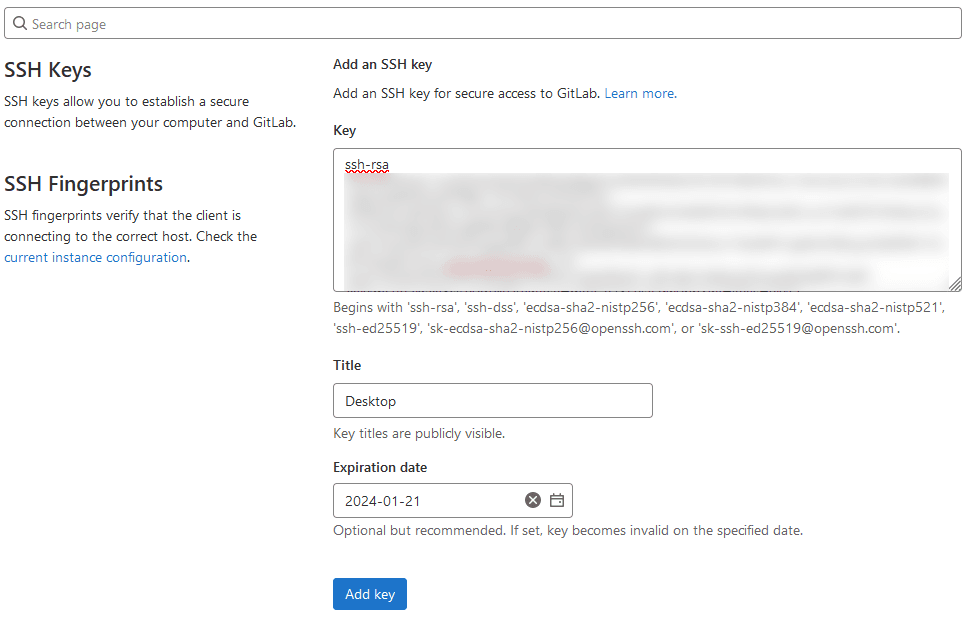
Add SSH Key to GitLab
Click Add Key when you're finished.
Testing the GitHub Connection
Now that we shared our keys with our services, we need to verify that the connection works. We can actually entirely through Git Bash!
ssh -T git@github.com, and hit enter.Hi [username]! You've successfully authenticated, but GitHub does not provide shell access., the connection was successful.Testing the GitLab Connection
The process for testing GitLab is very similar.
ssh -T git@[your organization name].comssh -T git@oregon.bootcampcontent.com.Welcome to GitLab, @[username]!, the connection was successful.